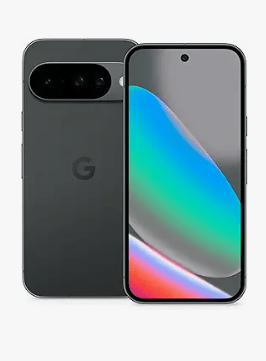
We finally got to one of those highlights of the year! Google’s newest flagship, the Google Pixel 10, was finally unveiled in August 2025 to heat up the competition again. When a new phone comes out, everyone talks about its camera, display, and battery, but we want to do something more exciting! We want to see what’s inside this phone and what Google engineers have cooked up for us. So, if you’re a phone-disassembly enthusiast like us, join us in this Google Pixel 10 disassembly to see how difficult it is to repair.
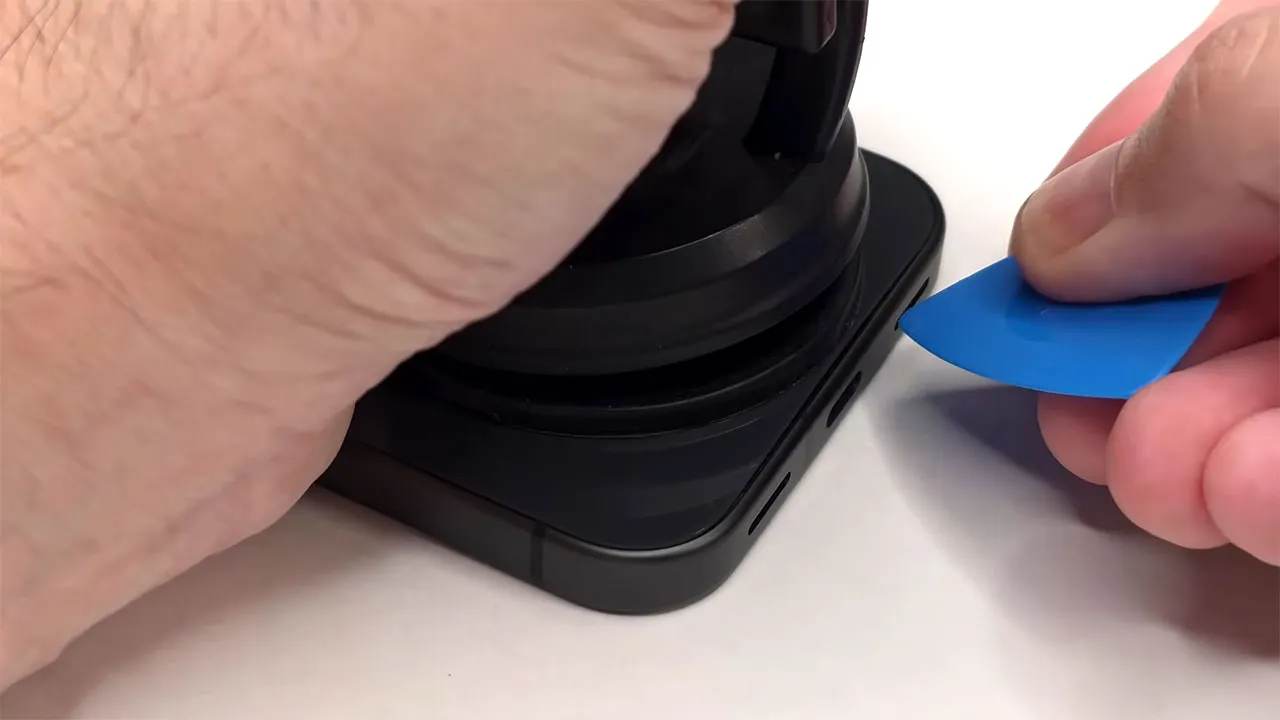
This model doesn’t have a SIM card or memory card tray, so you don’t need to start by removing it. To start, you need to heat the back cover with a hair dryer or heater to loosen the adhesive underneath. Then, use a opening tool to lift the back cover. I personally prefer a hair dryer because it’s less likely to damage the internal components with too much heat. Xiaomi 15T phone review
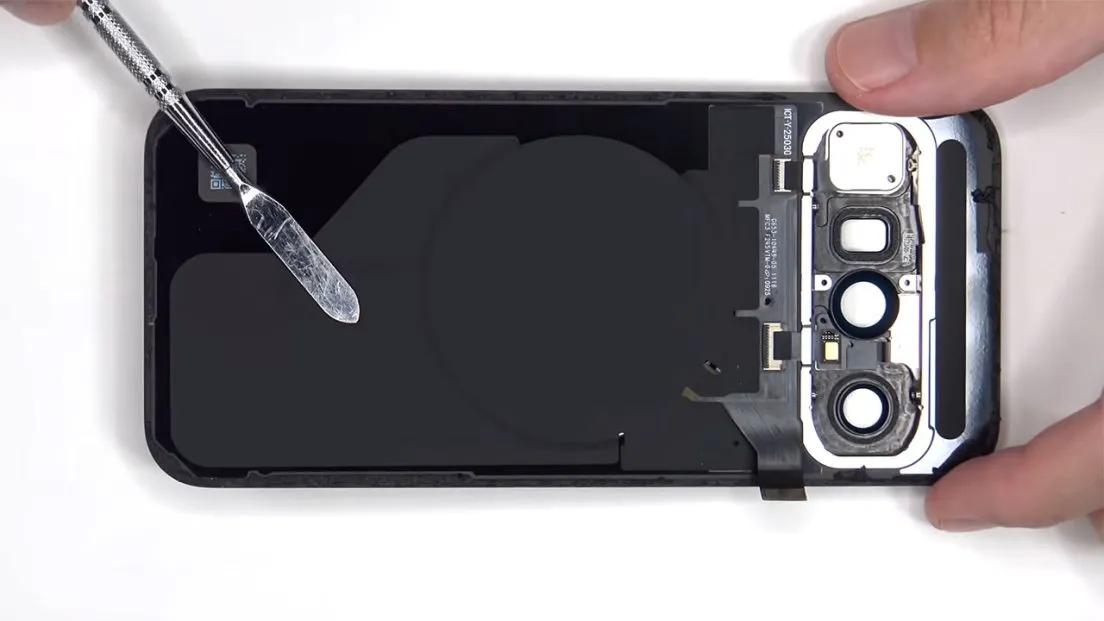
Once the back cover is off the frame, carefully lift it from the right side to the left. Just be careful because the rear sensor ribbon cable is still attached to the motherboard. There are two T4 screws that need to be removed. These screws hold a metal plate or cover over the ribbon cable connector.
Here’s a better look at the glass back cover. You can replace the camera lens cover by heating it and gently prying it off. So you don’t need to remove the entire back cover to replace it.
But if you’re going to replace the frame around the camera, there are four T4 screws that need to be removed. iPhone 17 Pro Max review
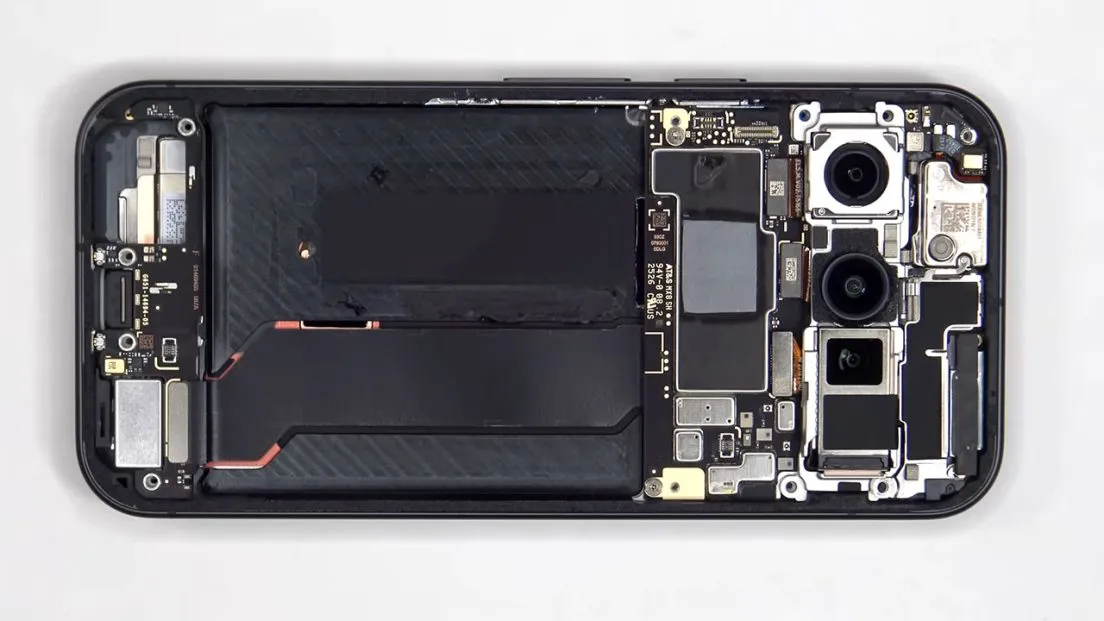
The wireless charging coil with magnets is in the middle here. This flat cable connects the wireless charging coil, NFC antenna, rear microphone, flash, and laser autofocus sensor on the back of the phone to the motherboard.
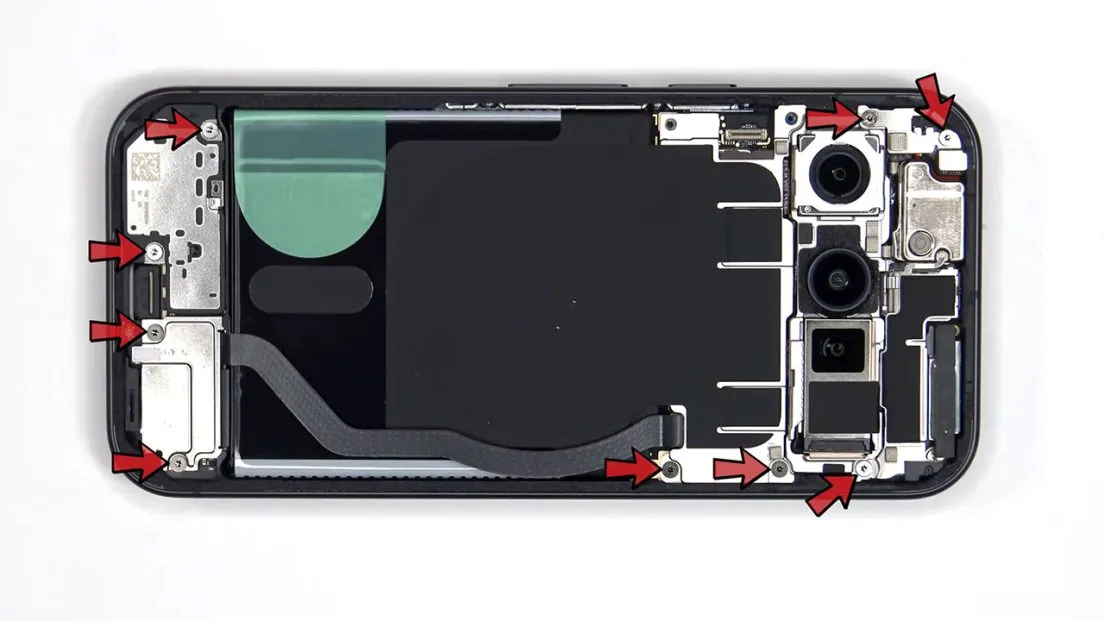
At this point, there are 9 more T4 screws to remove.
There is a layer of graphite film between the battery and the wireless charging coil that helps with heat transfer. Now we can disconnect the battery cable and then the rest of the cables. Samsung A54 game test review
Here is the bottom speaker, which has a mesh filter and a rubber gasket over the speaker opening.
Okay, let’s get to the battery removal. It seems that Google has used a new type of adhesive tape for the battery. So let’s see how hard or easy it is to remove. This is a 4970 mAh battery. Even with this new adhesive tape that Google has used, I still managed to tear the tab off, and that was after I heated it up a lot to loosen the adhesive underneath. So the design of this adhesive tape is not too bad, but it is definitely better than the previous ones they used.
Once the battery and adhesive are in place, we can see that this flat cable connects the bottom board (subboard) to the motherboard.
Here we have the 48MP main lens, 13MP ultra-wide, and 10.8MP telephoto. The main and telephoto lenses have optical image stabilization (OIS).
Here’s a look at the 10.5MP selfie camera.
There are five more T4 screws to remove.
This is the 5G millimeter wave antenna.
When we remove it, two more T4 screws are exposed.
Looking at the motherboard, we can see the graphite film and a thermal pad on the protective shield, which are placed to transfer heat. On the other side of the board, we see the proximity and ambient light sensors, as well as the thermal paste on the back shield, which are for heat transfer. When we remove the graphite film, we can see the RAM placed on the processor.
Looking at the sub-board, we see the charging port with a rubber gasket around it and the microphone next to it. This is the other side of the board. The vibration motor, or linear haptic, is located in the lower corner and is attached with a little glue. To replace it, just apply a little heat and slowly lift it. The same goes for the conversation speaker located at the top and the second microphone next to it.
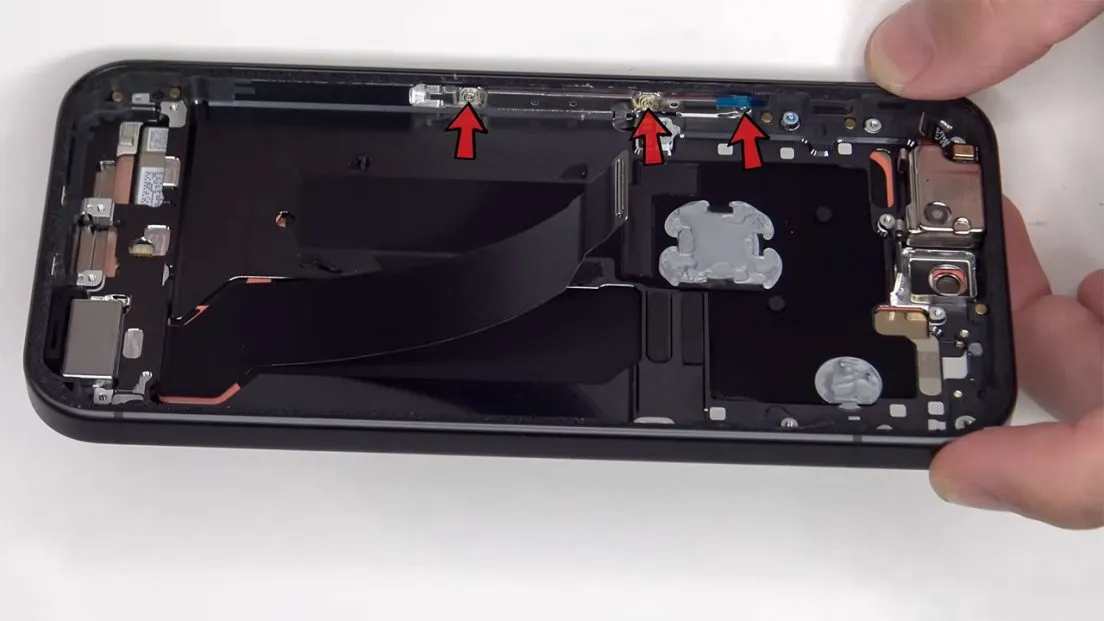
To replace the power button and volume keys flat cable, three T4 screws need to be unscrewed, then we remove the metal plate and slowly remove the flat cable.
Under the motherboard, the thermal paste is placed on a 3D graphite layer to help with heat transfer. So there is no vapor chamber in this model. And to replace the screen, you don’t have to open the phone from the back. Instead, you have to heat the front of the phone, on the screen itself, to loosen the adhesive underneath. Then you lift the screen, which has a connector on the bottom corner and a flat cable attached to it. This way you can access the connector, disconnect it, and remove the screen. Of course, I won’t open this intact screen because the chances of damaging a healthy screen when opening it are too high.
If you accidentally stick your SIM card pin into the microphone hole, don’t worry because both the microphone itself and its filter are above that hole, so they won’t be damaged.
I give this phone a repairability score of 8.5 out of 10. Replacing the phone’s battery is still difficult, and it’s not as easy as it is on Samsung or Apple phones. Now it’s time to put the phone back together. Once everything is in place, apply new adhesive and reattach the back cover. Turn the phone over, turn it on, and that’s it.